Showing posts with label Google Tricks. Show all posts
Showing posts with label Google Tricks. Show all posts
Wednesday, 3 July 2013
0
Wednesday, 3 July 2013
PRABH KARAN SINGH
Google Glass , a Smart Glass through which we can do almost everything such as shoot photos , videos , get directions , hangout with someone and surf the web with your voice / eyes. You might think that you want to buy / try Google Glasses but it is a bit too costly, so few hours ago , a dream came true, Now you can run Google Glasses on your Android Smartphone or tablet now. Here is the
Procedure :

Download the APK:
Home: http://zhuowei.github.io/Xenologer/glasshome-modded.apk
Camera: http://zhuowei.github.io/Xenologer/glasscamera-modded.apk
Maps: http://zhuowei.github.io/Xenologer/glassmaps-modded.apk
Setup: http://zhuowei.github.io/Xenologer/glasssetup-modded.apk
This one’s been modified so that instead of scanning a barcode, it uses the existing Google Account to setup and then force closes.
Install just like any other boring APK. None of the Google Glass apps need system privilages. I do not recommend installing these APKs as system APKs, as the Glass apps will attempt to reboot the phone after a force close.
You can install the following too but it’s not necessary :
Hangouts: crashes on Android 4.2 due to a change in the underlying Android code. If you have another version of Android, tryhttp://zhuowei.github.io/Xenologer/glasshangouts-modded.apk
GlassSound.apk: installs and runs without modification. Get a copy from any XE5 system dump. Not essential for Glass; Glass will just run muted without it.
GlassPhotosphere.apk: As stated by http://www.studio8apps.com/running-google-glass-photo-sphere-viewer-on-android-phone/ , runs (for the easter egg) without modification. Again, any dumped copy from a XE5 should run fine. Not essential to Glass.
This is a Screen shot of Google Glass running on my Galaxy Nexus :

You can say ” OK Glass ” to show a menu from where you can search on google , take and shoot photos and videos , get directions , etc. The thing I noticed that while searching for directions , you can search but you can’t past the warning screen which say some warning.
Read more...
Google Glasses on your Android Phone / Tablet
A Dream Came True, Run Google Glasses on your Android Phone / Tablet
Google Glass , a Smart Glass through which we can do almost everything such as shoot photos , videos , get directions , hangout with someone and surf the web with your voice / eyes. You might think that you want to buy / try Google Glasses but it is a bit too costly, so few hours ago , a dream came true, Now you can run Google Glasses on your Android Smartphone or tablet now. Here is the
Procedure :
Download the APK:
Home: http://zhuowei.github.io/Xenologer/glasshome-modded.apk
Camera: http://zhuowei.github.io/Xenologer/glasscamera-modded.apk
Maps: http://zhuowei.github.io/Xenologer/glassmaps-modded.apk
Setup: http://zhuowei.github.io/Xenologer/glasssetup-modded.apk
This one’s been modified so that instead of scanning a barcode, it uses the existing Google Account to setup and then force closes.
Install just like any other boring APK. None of the Google Glass apps need system privilages. I do not recommend installing these APKs as system APKs, as the Glass apps will attempt to reboot the phone after a force close.
You can install the following too but it’s not necessary :
Hangouts: crashes on Android 4.2 due to a change in the underlying Android code. If you have another version of Android, tryhttp://zhuowei.github.io/Xenologer/glasshangouts-modded.apk
GlassSound.apk: installs and runs without modification. Get a copy from any XE5 system dump. Not essential for Glass; Glass will just run muted without it.
GlassPhotosphere.apk: As stated by http://www.studio8apps.com/running-google-glass-photo-sphere-viewer-on-android-phone/ , runs (for the easter egg) without modification. Again, any dumped copy from a XE5 should run fine. Not essential to Glass.
This is a Screen shot of Google Glass running on my Galaxy Nexus :
You can say ” OK Glass ” to show a menu from where you can search on google , take and shoot photos and videos , get directions , etc. The thing I noticed that while searching for directions , you can search but you can’t past the warning screen which say some warning.
Monday, 13 May 2013
0
Monday, 13 May 2013
PRABH KARAN SINGH

Read more...
GMAIL DOWN AGAIN
GMAIL DOWN AGAIN
ALSO LIKE ON FACEBOOK PAGE FOR DAILY UPDATES
Monday, 22 April 2013
0
Monday, 22 April 2013
PRABH KARAN SINGH
Read more...
Google Glasses – Specifications
It
was one time when companies built huge desktop’s; then there came the
era of laptops and then after all – Smartphones. But all this doesn’t
end here, Google Smart Glasses are gonna change it all!
Google Glass are being developed by as the name tells you ‘Google‘.
I think that these glasses will become one of the most fascinating technologies in the world, they are gonna change the way we call, text or click photographs. So, you guys are using smartphones – using you’r hands? Uh! No more, these glasses sync with your Android cell phone and after that you can call, text or click photo’s and upload them to web.
The have whooping amount of storage, and google too provides a pretty nice amount of cloud storage.
It has built in Wifi, so that you can upload your files on go!

Following are some features:
Technical specs:
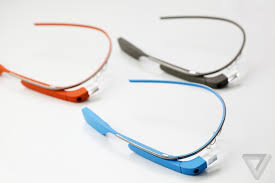
Google Glass are being developed by as the name tells you ‘Google‘.
I think that these glasses will become one of the most fascinating technologies in the world, they are gonna change the way we call, text or click photographs. So, you guys are using smartphones – using you’r hands? Uh! No more, these glasses sync with your Android cell phone and after that you can call, text or click photo’s and upload them to web.
The have whooping amount of storage, and google too provides a pretty nice amount of cloud storage.
It has built in Wifi, so that you can upload your files on go!
Following are some features:
| Feature | Voice activation text |
|---|---|
| Record video | “ok, glass, record a video.” |
| Take picture | “ok, glass, take a picture.” |
| Use Google Now | “ok, glass, [question].” |
| Start Google+ hangout | “ok, glass, hang out with [person/circle].” |
| Search | “ok, glass, google [search query].” |
| Search photos | “ok, glass, google photos of [search query].” |
| Translate | “ok, glass, say [text] in [language].” |
| Give directions | “ok, glass, give directions to [place].” |
| Send message | “ok, glass, send a message to [name].” “ok, glass, send [name] that [message].” “ok, glass, send [message] to [name].” |
| Display weather | none/automatically (Google Now) “ok, glass, how is the weather in [location]?” “ok, glass, do I need an umbrella today?” |
| Give flight details | none/automatically (Google Now) “ok, glass, when does flight [flight number] depart from [airport]?” |
- They have a good design and are fit for everyone Google is also providing extra nose pads of different sizes.
- Has a high resolution display.
- A 5 MP camera for photos.
- 720 p Recording.
- Bone Conduction Transducer for Audio.
- Have WiFi and Bluetooth for connectivity.
- 16 GB storage but 12 GB usable.
- A good battery backup of a full day if not used extensively.
ALSO LIKE ON FACEBOOK PAGE FOR DAILY UPDATES
Wednesday, 12 September 2012
0
Wednesday, 12 September 2012
PRABH KARAN SINGH
You probably know a few of these memes already — passed around the intarwebz ad infinitum as they often are — those quirky little tricks and pranks you never thought you’d see from such a serious search engine. Occasionally, we searchers stumble upon some quietly placed “Google Easter Egg,” or sometimes Google’s PR peeps publicize some brand spanking new Fun Google trick that spices up the user experience as much as it enhances it. Whichever it is, these Google Tricks are fun darnit, so have fun with them.
Meme junkies and time-wasters that we are here at Google Tricks, we’ve had our fair share of good times. And because we’re not greedy, and because we like to organize as a way to procrastinate, we’ve done the heavy lifting of gathering what we consider to be the Top 25 Fun Google tricks right here in one glorious and easy-to-read location on this page. If you like the cut of our jib, perhaps you’d be so kind as to like us on the you-know-what-book, or add a one to our G+ thingie. We’d be so happy and thankful if you did.
 1. Google Gravity
Quite simply, this is Earth-bound physics “infused” into Google’s interface: with “gravity,” the visual elements you commonly find on the interface, such as the search bar, the “I’m feeing lucky” button, and everything else fall down like a stack of bricks on the bottom of the browser. You can even “pick up” and “throw” the search results at the “walls” or just simply mess with them. This is no longer implemented on Google, but you can still see how it worked through the link below.
2. Let me Google that for you
LMGTFY or Let Me Google That for You is a somewhat tongue-in-cheek service made for those of us who are too lazy to use Google. Upon entering a search query, instead of results, you get a link that you can then mail to your lazy recipient.
Clicking on the link launches the actual search: thus, in this perigrinatory manner, you have Googled it for them. All they have to do is click the link. A beautiful example of technology making things more complicated for us.
3. Google Chuck Norris
There was a time when the internet raged with all imaginable Chuck Norris jokes. So naturally, Google itself dipped its hand in the meme with the Chuck Norris Google Trick. Search “Chuck Norris,” and Google returns a familiar Chuck Norris joke: “Google won’t search for Chuck Norris because it knows you don’t find Chuck Norris, he finds you.”
4. God on Google Earth
Sometime in 2010, people around the world went “God crazy” when Google Earth supposedly had taken a “snapshot” of “divine beings” while crossing a mountain zone in Switzerland. There’s no definite answer, of course, but the buzz it created was testament to how the entire online community could get excited over a blurry photo, like they do with pictures of cats.
5. Google Pac-man
A treasure-trove of fun Google tricks won’t be complete without mentioning Google’s Pac-Man doodle. On May 22, 2010, the 30th anniversary of the classic game, people around the world woke up to a search engine sporting an actually playable mini-version of Pac-Man. And naturally, hundreds of millions of people spent hours playing the game, basically slowing down productivity to a halt.
6. Google Mirror
This fun Google trick simply displays a mirror image of everything you might see when doing a search on Google.

7. Google Hacker
Those who are familiar with the so-called language of hackers (1337 5p3@k or “leet speak”) may love using this Google trick to amuse haxor pals or confound the squares. Sure, the trick isn’t much trickier than swapping letters for moderately analogous numbers or ASCII characters — e.g. “G” becomes “6″, “E” becomes “3″, “N” becomes “||”, etc — But it’s still fun symbol-play, and still somehow feels like a secret language, despite that we all now w00t every time we are overcome with joy.
8. Google Barrel Roll
A Fun Google trick that is still accessible today, the barrel roll means exactly as it says: make Google do a barrel roll. Simply type “Do a barrel roll” into the search bar and Google dutifully obeys. Warning: This Especially Fun Google Trick is known to make babies cry and grown men squeal with delight.
9. Google Rainbow
Like a handful of the other Fun Google Tricks included in this list, this third-party website that has no official affiliation with Google but only offers its two cents in letting people experience the search engine in a delightful way. If you like colors, this site delivers it—although it may remind you more of the internet circa early-1990s, with all its animated GIFs.
10. Google Sphere
Google Sphere turns every little element you commonly see on Google’s homepage into a swirling “sphere.” It’s pretty cool, but it’s no longer implemented on Google. To see how it once worked, just visit the link below.
11. Google Spam
Probably not an actual Google trick but more a manifestation of how Google offers users related information. In the folders in your Gmail account, you usually see a one-line text advertisement from Adsense. But in the Spam folder, what you’ll see is a real Spam recipe—yes, it’s a recipe for something you can actually eat.

12. Google Tilt or Askew
Typing the word “tilt” or “askew” on Google (specifically if you’re using the Chrome or Safari browser) commands the search engine to “tilt” the whole screen slightly to the right.
13. Dragon Slayer
Those who use Google Docs will find this mildly amusing. If you create or open any spreadsheet, pressing Shift+F12 pops up a message that says: “Dragon slain! Congratulations, you’ve slain the dragon! ]B=8}”.
14. Google Ninja
Who doesn’t love ninjas? Google definitely does. If you’re using your Google Reader feed, press the keys “up, up, down, down, left, right, left, right, B, A” and a ninja (or a couple of them) appear!
15. All the Google Doodles
Over the years, Google has released several of its “doodles”—a temporary re-design of the Google logo made as a tribute to a historical event or the birthday of someone who has changed the world for the better. Through the link below, you’ll find all of the Google Doodles, not only the American versions.
16. Recursion
Type “recursion” into the Google search bar and Google in return asks, rather recursively: “Did you mean recursion?”
17. Google’s Nessie
Use the beach theme with your iGoogle homepage, then very patiently sit there and wait until the clock strikes 3:14 AM. Or you can just more the clock forward and see the monster” that comes out. If you actually waited several hours until 3:14 AM, finally seeing the monster might not totally amuse you.
18. Flight Simulator
What started as an Easter egg became so well-loved that Google eventually turned it into a regular feature of Google Earth. Just click Tools > Enter Flight Simulator, and you’re off to make a round-the-world tour. It would have been more awesome if Google Earth also has a “rocket launcher” feature with unlimited ammo to go with it, but maybe next time.
19. Google MentalPlex
One of the earliest (if not, the earliest) Google April Fool’s joke (this one surfaced in 2000) is the Google MentalPlex. Instead of typing their queries into the search bar, unwitting users were “invited” to just “think” their questions while gazing intently into the MentalPlex circle (apparently to allow Google enough time to “read” your brain signals and transform them into actual search engine queries), then click into the circle to see the results. Even Google’s CEO and co-founder Larry Page called MentalPlex “a quantum leap in finding what you are looking for on the Internet. Typing in queries is so 1999.” It was fun. Especially if you remember that this was the early days of Google, long before the billion-dollar behemoth called Adsense and what-have-you.
20. Google Anagram
Step 1: Type “anagram” into the Google search bar. Step 2: Google asks if you in fact mean “nag a ram.” Step 3: Proceed to LOL.
21. The disappearing “OO”
This is not really a Google fun trick per se, but you can wow your clueless friend with this little “magic.” Click anywhere on the white space of the Dark Arts page (URL in linked title above), then pretend to rub your two fingers on the two OO’s on the Google logo for 2 to 3 seconds, and the O’s will vanish. To bring it back, do the same thing: Click anywhere again and the OO’s will reappear, after which you will be redirected to the real Google.
22. Annoying Google
The “Annoying Google” trick is not really annoying under normal circumstances. Even if you’re in a hurry, Annoying Google’s way of messing up the words as you type them (randomly changing from upper-case to lower-case) is not really annoying. But if you want to see this in action and determine for yourself if it’s really annoying or simply mildly amusing, visit the link below.
23. Epic Google
Epic Google is Google on steroids — not the enhanced performance however, just the obscene bulk. Once the page loads, the logo, search bar, “Search” and “I’m Feeling Excessive” buttons, all swell until they either float off the page or you type a search and get the heck outta there.
24. Weenie Google
Weenie Google is the flip side of Epic Google. Once the page loads, the logo, search bar, “Search” and “I’m Feeling Inadequate” buttons,immediately begin to shrink to inscrutable and barely-usable sizes. Is fun, no?
25. Chicken Rolling
“Rick-rolling” is a popular prank that involves redirecting the unwitting user to a video of music artist Rick Astley singing one of his hit songs (most often “Never Gonna Give You Up”). Chicken-rolling, on the other hand, is like Rick-rolling, but with one dancing man eating fried chicken legs. To subject your unwitting friend to this prank, type the code “2204355” then click “I’m feeling lucky.” See what happens.
Whew. What a lot of fun that list provides.
Read more...
The Top 25 Fun Google Tricks
The Top 25 Fun Google Tricks
Maybe to help dispel the wacky notion that geeks are boring, or maybe to prove that Search isn’t all work and no play and Sergei and Larry are by no means dull boys, Google every-once-in-a-Google-Moon leavens their spam-fighting and user experience-enhancing with some honest-to-goodness, good clean Fun Google Tricks.You probably know a few of these memes already — passed around the intarwebz ad infinitum as they often are — those quirky little tricks and pranks you never thought you’d see from such a serious search engine. Occasionally, we searchers stumble upon some quietly placed “Google Easter Egg,” or sometimes Google’s PR peeps publicize some brand spanking new Fun Google trick that spices up the user experience as much as it enhances it. Whichever it is, these Google Tricks are fun darnit, so have fun with them.
Meme junkies and time-wasters that we are here at Google Tricks, we’ve had our fair share of good times. And because we’re not greedy, and because we like to organize as a way to procrastinate, we’ve done the heavy lifting of gathering what we consider to be the Top 25 Fun Google tricks right here in one glorious and easy-to-read location on this page. If you like the cut of our jib, perhaps you’d be so kind as to like us on the you-know-what-book, or add a one to our G+ thingie. We’d be so happy and thankful if you did.
 1. Google Gravity
Quite simply, this is Earth-bound physics “infused” into Google’s interface: with “gravity,” the visual elements you commonly find on the interface, such as the search bar, the “I’m feeing lucky” button, and everything else fall down like a stack of bricks on the bottom of the browser. You can even “pick up” and “throw” the search results at the “walls” or just simply mess with them. This is no longer implemented on Google, but you can still see how it worked through the link below.
2. Let me Google that for you
LMGTFY or Let Me Google That for You is a somewhat tongue-in-cheek service made for those of us who are too lazy to use Google. Upon entering a search query, instead of results, you get a link that you can then mail to your lazy recipient.
Clicking on the link launches the actual search: thus, in this perigrinatory manner, you have Googled it for them. All they have to do is click the link. A beautiful example of technology making things more complicated for us.
3. Google Chuck Norris
There was a time when the internet raged with all imaginable Chuck Norris jokes. So naturally, Google itself dipped its hand in the meme with the Chuck Norris Google Trick. Search “Chuck Norris,” and Google returns a familiar Chuck Norris joke: “Google won’t search for Chuck Norris because it knows you don’t find Chuck Norris, he finds you.”
4. God on Google Earth
Sometime in 2010, people around the world went “God crazy” when Google Earth supposedly had taken a “snapshot” of “divine beings” while crossing a mountain zone in Switzerland. There’s no definite answer, of course, but the buzz it created was testament to how the entire online community could get excited over a blurry photo, like they do with pictures of cats.
5. Google Pac-man
A treasure-trove of fun Google tricks won’t be complete without mentioning Google’s Pac-Man doodle. On May 22, 2010, the 30th anniversary of the classic game, people around the world woke up to a search engine sporting an actually playable mini-version of Pac-Man. And naturally, hundreds of millions of people spent hours playing the game, basically slowing down productivity to a halt.
6. Google Mirror
This fun Google trick simply displays a mirror image of everything you might see when doing a search on Google.
7. Google Hacker
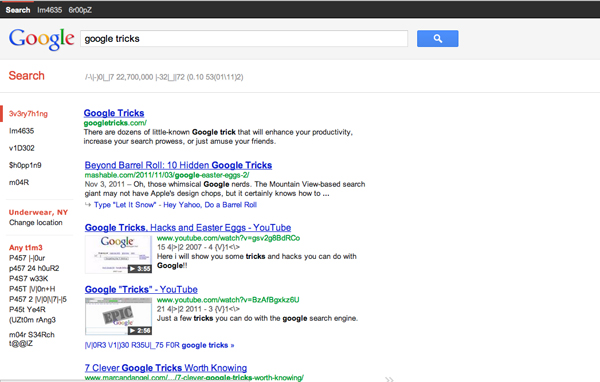
Those who are familiar with the so-called language of hackers (1337 5p3@k or “leet speak”) may love using this Google trick to amuse haxor pals or confound the squares. Sure, the trick isn’t much trickier than swapping letters for moderately analogous numbers or ASCII characters — e.g. “G” becomes “6″, “E” becomes “3″, “N” becomes “||”, etc — But it’s still fun symbol-play, and still somehow feels like a secret language, despite that we all now w00t every time we are overcome with joy.
8. Google Barrel Roll
A Fun Google trick that is still accessible today, the barrel roll means exactly as it says: make Google do a barrel roll. Simply type “Do a barrel roll” into the search bar and Google dutifully obeys. Warning: This Especially Fun Google Trick is known to make babies cry and grown men squeal with delight.
9. Google Rainbow
Like a handful of the other Fun Google Tricks included in this list, this third-party website that has no official affiliation with Google but only offers its two cents in letting people experience the search engine in a delightful way. If you like colors, this site delivers it—although it may remind you more of the internet circa early-1990s, with all its animated GIFs.
10. Google Sphere
Google Sphere turns every little element you commonly see on Google’s homepage into a swirling “sphere.” It’s pretty cool, but it’s no longer implemented on Google. To see how it once worked, just visit the link below.
11. Google Spam
Probably not an actual Google trick but more a manifestation of how Google offers users related information. In the folders in your Gmail account, you usually see a one-line text advertisement from Adsense. But in the Spam folder, what you’ll see is a real Spam recipe—yes, it’s a recipe for something you can actually eat.

12. Google Tilt or Askew
Typing the word “tilt” or “askew” on Google (specifically if you’re using the Chrome or Safari browser) commands the search engine to “tilt” the whole screen slightly to the right.
13. Dragon Slayer
Those who use Google Docs will find this mildly amusing. If you create or open any spreadsheet, pressing Shift+F12 pops up a message that says: “Dragon slain! Congratulations, you’ve slain the dragon! ]B=8}”.
14. Google Ninja
Who doesn’t love ninjas? Google definitely does. If you’re using your Google Reader feed, press the keys “up, up, down, down, left, right, left, right, B, A” and a ninja (or a couple of them) appear!
15. All the Google Doodles
Over the years, Google has released several of its “doodles”—a temporary re-design of the Google logo made as a tribute to a historical event or the birthday of someone who has changed the world for the better. Through the link below, you’ll find all of the Google Doodles, not only the American versions.
16. Recursion
Type “recursion” into the Google search bar and Google in return asks, rather recursively: “Did you mean recursion?”
17. Google’s Nessie
Use the beach theme with your iGoogle homepage, then very patiently sit there and wait until the clock strikes 3:14 AM. Or you can just more the clock forward and see the monster” that comes out. If you actually waited several hours until 3:14 AM, finally seeing the monster might not totally amuse you.
18. Flight Simulator
What started as an Easter egg became so well-loved that Google eventually turned it into a regular feature of Google Earth. Just click Tools > Enter Flight Simulator, and you’re off to make a round-the-world tour. It would have been more awesome if Google Earth also has a “rocket launcher” feature with unlimited ammo to go with it, but maybe next time.
19. Google MentalPlex
One of the earliest (if not, the earliest) Google April Fool’s joke (this one surfaced in 2000) is the Google MentalPlex. Instead of typing their queries into the search bar, unwitting users were “invited” to just “think” their questions while gazing intently into the MentalPlex circle (apparently to allow Google enough time to “read” your brain signals and transform them into actual search engine queries), then click into the circle to see the results. Even Google’s CEO and co-founder Larry Page called MentalPlex “a quantum leap in finding what you are looking for on the Internet. Typing in queries is so 1999.” It was fun. Especially if you remember that this was the early days of Google, long before the billion-dollar behemoth called Adsense and what-have-you.
20. Google Anagram
Step 1: Type “anagram” into the Google search bar. Step 2: Google asks if you in fact mean “nag a ram.” Step 3: Proceed to LOL.
21. The disappearing “OO”
This is not really a Google fun trick per se, but you can wow your clueless friend with this little “magic.” Click anywhere on the white space of the Dark Arts page (URL in linked title above), then pretend to rub your two fingers on the two OO’s on the Google logo for 2 to 3 seconds, and the O’s will vanish. To bring it back, do the same thing: Click anywhere again and the OO’s will reappear, after which you will be redirected to the real Google.
22. Annoying Google
The “Annoying Google” trick is not really annoying under normal circumstances. Even if you’re in a hurry, Annoying Google’s way of messing up the words as you type them (randomly changing from upper-case to lower-case) is not really annoying. But if you want to see this in action and determine for yourself if it’s really annoying or simply mildly amusing, visit the link below.
23. Epic Google
Epic Google is Google on steroids — not the enhanced performance however, just the obscene bulk. Once the page loads, the logo, search bar, “Search” and “I’m Feeling Excessive” buttons, all swell until they either float off the page or you type a search and get the heck outta there.
24. Weenie Google
Weenie Google is the flip side of Epic Google. Once the page loads, the logo, search bar, “Search” and “I’m Feeling Inadequate” buttons,immediately begin to shrink to inscrutable and barely-usable sizes. Is fun, no?
25. Chicken Rolling
“Rick-rolling” is a popular prank that involves redirecting the unwitting user to a video of music artist Rick Astley singing one of his hit songs (most often “Never Gonna Give You Up”). Chicken-rolling, on the other hand, is like Rick-rolling, but with one dancing man eating fried chicken legs. To subject your unwitting friend to this prank, type the code “2204355” then click “I’m feeling lucky.” See what happens.
Whew. What a lot of fun that list provides.
Thursday, 9 August 2012
0
Thursday, 9 August 2012
PRABH KARAN SINGH
Read more...
Latest Google Basketball doodle - Play basketball in Google
Good news! Google has came out with another exciting interactive
Doodle. In the previous day, Google came out with hurdle doodle where
you can play 110m hurdles.
Google already came out with so many Doodle based on Olympics 2012. It is the 13th Google's Olympic Doodle. In 7th August, Google introduced Hurdles Doodle, which got popular worldwide. So the next day Google came out with another similar interactive doodle. The name of the Doodle is Basketball 2012.
At first, Go to Google.com or click this link

Your main objective is to throw the ball on the basket. Try to throw all the ball on the basket as soon as possible. Just use the Space bar to throw the ball.
Hope you will enjoy this Doodle. Let me us know about your Score ;)
Google already came out with so many Doodle based on Olympics 2012. It is the 13th Google's Olympic Doodle. In 7th August, Google introduced Hurdles Doodle, which got popular worldwide. So the next day Google came out with another similar interactive doodle. The name of the Doodle is Basketball 2012.
At first, Go to Google.com or click this link

Your main objective is to throw the ball on the basket. Try to throw all the ball on the basket as soon as possible. Just use the Space bar to throw the ball.
Hope you will enjoy this Doodle. Let me us know about your Score ;)
Saturday, 19 May 2012
0
Saturday, 19 May 2012
PRABH KARAN SINGH


Subscribe
us via E-mail and Add us on Facebook for daily updates and Plz also do
click once on the ads displaying below or above the post for us.. :)
Read more...
Simple Way to Enable or Disable Comments in Google+
Network of Google+ is increasing rapidly now days. If you do not join this yet please click here.
As we already know at this time it is the big rival of facebook. This
is social networking site so you will share your thoughts, photos,
videos etc. and people will also do comment on this. But what happen
when somebody do a vulgar and unbearable comments on them ?? You get
angry from that person and even can a fight. So don't let this happen
by this trick you can stop people to comment on your posts, videos,
photos. Cool.. Just follow the simple steps:-
1). If you are member of Google Plus then Click Here to login in to your account.
2). Do the post that you want to share with your friends and to make this post uncommentable click on the triangle button and Select the Disable Comment option.

3). After this you will see there will no comment option i.e. nobody will be able to do comment on your post.

njoy !!!
For more tricks on Google+ Click Here.
Saturday, 13 August 2011
0
Saturday, 13 August 2011
saurav garg


Read more...
Customize Gmail by Enabling Preview Pane
In yesterday's post New Gmail Login Page i told you Google is concentrating on appearance of it's services. Today i'll tell you how you can can customize your Gmail Preview Pane Settings. In this trick you don't have to open a mail and get back to open another mail by this you will be able to see your all inbox messages and a mail side by side. In this your Gmail page will be divided into two parts:-
1). In the First Part there will be all your inbox messages or mails received from your friends.
2). In the Second Part your selected mail will be open.
Here are the steps to Enable Preview Pane:-
1). Login in to your Gmail Account and click on the Mail Settings by selecting the Gear icon at the right side of your profile picture.
2). From your settings click on the Labs button.
3). Scroll down till you find Preview Pane and select enable button and save changes.
4). Now you will see a message, see the screenshot below:-
5). Click on the button to which the arrow is pointing in the above screenshot. It will ask you in which view you want to see your window pane as in the picture we have chosen Vertical Split and this will look like:-

Thats it... :)
Subscribe us via E-mail and Add us on Facebook for daily updates and Plz also do click once on the ads displaying below or above the post for us.. :)
Friday, 12 August 2011
0
Friday, 12 August 2011
saurav garg

Read more...
New Gmail Login Page
Every day Google has come with new technology. First Google+ who get more than 20 billions users in a month. After the arrival of Google+, Google is now updating its services like Google.com and Gmail Interface got the Google+ look, now the Gmail Login page got the new look of Google+. Check it out:-
Image Credits Geekalive.com
The new sign-in page looks clear and neat same as new mail interface, and the White and Grey combinations gives new perfect look. Sign-up button is now located in the top right corner with good color. I love the new look and feel. This New Sign in page is rolling out for all users one by one. Users will notice a small text link at the bottom that they are viewing new sign-in page and Feedback option also. Same footer have the link to switch to old Sign-in interface.What you think about this new sign-in page?
Subscribe us via E-mail and Add us on Facebook for daily updates and Plz also do click once on the ads displaying below or above the post for us.. :)
Subscribe us via E-mail and Add us on Facebook for daily updates and Plz also do click once on the ads displaying below or above the post for us.. :)
Tuesday, 9 August 2011
0
Tuesday, 9 August 2011
saurav garg


Subscribe us via E-mail and Add us on Facebook for daily updates and Plz also do click once on the ads displaying below or above the post for us.. :)
Read more...
Search by Images in Google

You all must be download from Google by typing the text in the search box everyday and you all must be happy with that. But what happen if i tell you you can also search in google by an image... Strange..??? It's true and here is the solution to do this.
Also Read:- Four Google Search Engine pages in a Single Tab
Open Google images just by clicking here and you will see a camera icon along with the search box in the google. See the screenshot below:-

Here are the four methods to search in google by images. I will tell you each way.
1) By Using Drag and Drop:-
In this method you can search by dragging an images from your computer or from any website in the search box. It will show all the related images according to your image that you have dragged in the search box.
2) By Uploading an Image:-
By this method you can upload one or more images to search in google. You have to do only click on the camera icon that shown in the above screenshot and select the upload an image option and browse the image that you want to use in search.
3) From a URL:-
By this method you can search images only by giving the URL of the image and it will show all the related images and articles according to your URL image. Click on the camera icon and select Paste Image URL option and give the URL of the image.
4) By your Browser Extensions:-
By this method you can search by images at faster rate. Only you have to install the extension for your browser.
After installation these extension you have to only right click on the image and select Search By Image.
Saturday, 6 August 2011
0
Saturday, 6 August 2011
saurav garg

 Read more...
Secure your Gmail Account 2-Step Verification
Today I'm telling about how you can secure your Google account using 2-step verification. 2-step verification is the best way for securing your Google account even if your password is stolen. You can't login to your account unless you have the verification code. Using it, you have to required both password & verification code (Receive on your mobile via SMS) for accessing your Gmail, Orkut services. You must be aware about security provided by Google.
- Login to your Google account.
- Open this link https://www.google.com/accounts/SmsAuthConfig
- Click on Start setup.

- Now Set up your phone: Choose appropriate option (me chose Text message (SMS) or voice call under Landline or mobile phone).
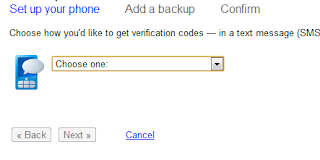
- Choose your country & Enter your mobile number.
- Choose the option Send codes by: SMS text message or Voice call (I prefer to SMS text message).
- Click on Send code under Let's the test phone.
- You will receive a code via text if you chose SMS text message.
- Enter code in next field & click on Verify.
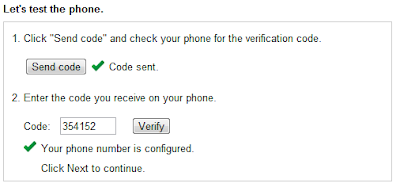
- Click on Next.
Your phone is now configured to receive verification codes. Now make backup in the case if you lost your phone or is unavailable.
- Click on Next.
- Print Backup verification codes or save it.
Remember: Each backup verification code can be use only once for verification & keep these codes secret. Read the warning under backup verification codes carefully.
- Check Yes, I have a copy of my backup verification codes & click on Next.
- Now add another phone number that belongs to you or a trusted friend or family member.
- Follow the steps as described above for sending code & optional testing.
- Click on Next.
- Click on Turn on 2-step verification

- That's all.
When you will sign in to your Google account using user id & password, it will ask for verification code send to your phone. You must require verification code for accessing your account.
If you didn't receive code, then you can use another ways for getting verification code as shown below.
Also Read:- Secure yourself from hackers in Mozilla Firefox
Subscribe us via E-mail and Add us on Facebook for daily updates and Plz also do click once on the ads displaying below or above the post for us.. :)
Subscribe us via E-mail and Add us on Facebook for daily updates and Plz also do click once on the ads displaying below or above the post for us.. :)
0
saurav garg

Go to this link http://googlegooglegooglegoogle.com.br/
Subscribe us via E-mail and Add us on Facebook for daily updates and Plz also do click once on the ads displaying below or above the post for us.. :)
Read more...
Four Google Search Engines Under One Page

For the 4 Search engines at one page..
Subscribe us via E-mail and Add us on Facebook for daily updates and Plz also do click once on the ads displaying below or above the post for us.. :)
Thursday, 4 August 2011
0
Thursday, 4 August 2011
saurav garg


Read more...
Transfer Your Facebook Photos to Google Plus
Photos are a part of our memories and everyone likes to preserve their photos online! Most of you would have preferred Facebook but there are many people who have been migrating to Google+. You can request an invite for Google Plus. If you are migrating from Facebook to Google+, you might also want to move your Facebook photos to Google+. Here is a trick to move your Facebook photo albums to Google plus.
An Indian developer Aman Kumar Jain has developed an extension for Google Chrome which helps you move your Facebook photos to Picasa which can later be shared with your circles in Google Plus. You can download the plugin Move2Picasa and install it on your Chrome Browser after which you would see an icon in your Chrome browser (top-right). Click on the icon and login using Facebook.

After you login using Facebook, you will be shown you Facebook photo albums and the pics within. You can deselect the photos which you do not want to be moved to Google plus. After this, just click on Upload and all the photos which you had selected will be added to your albums in Google+.

This plugin helps you easily move Facebook photos to Google+. I could transfer 99 photos in 3 minutes, pretty fast. If you have joined Google+, do try it out.
Subscribe us via E-mail and Add us on Facebook for daily updates and Plz also do click once on the ads displaying below or above the post for us.. :)
Sunday, 31 July 2011
0
Sunday, 31 July 2011
saurav garg
Read more...
Most Useful Google Chrome Extensions for Google +
If you are chrome lover and already have an account on Google plus, taking advantage of Chrome extension, you will easily able to widen Google + features and experience. I have sought some excellent list of extensions for users of Google Plus which will make your G+ Social networking experience even more enjoyable!  . If u don't yet have Google+ account then click her, You will receive an invitaion from us.
 .
.


The extension, which only works when Facebook is set to the English language, essentially extracts data for each of your Facebook friends that they have shared with you (name, emails, phone numbers, screen names, websites, address, and birthday). This process is rather time-consuming, especially if you have a slow connection and/or a large number of Facebook friends.
Even though Facebook is messing around with Facebook Friend Exporter’s functionality, click here to see this works
click here for the extension

10. Google + Tweet


It fixes the black navigation bar on the top so that users don’t need to go to top again in order to access the navigation tool bar again. It puts the search bar on the top so it is easy to use the search bar with the help of the mouse. It saves the space while using the Google calendar and Google maps and provides a good look of web page in google chrome browser click here for the extension

. If u don't yet have Google+ account then click her, You will receive an invitaion from us. 1. Extended Share for Google Plus
. Features:
- Adds Twitter, Linked-In, Facebook Share Button to each post click here for the extension
2. Replies and more for Google Plus
Features:
- Reply and reply to Author links for easy + mentions of other user click here for the extension
3. Surplus
Features:
- Post or respond from within the pop-up
- Desktop Notifications
- Notification sounds
- Switch between multiple Google accounts
4. +Comment Toggle
Features:
- Hides any comments to posts within your Stream and makes them available on click, click here for the extension
5. Notification Count for Google Plus
Features:
- Checks for any unread notifications of your Google Plus every minute, and displays unread notification count on your browser extension toolbar.
- Click to open a tab to read all notifications.
6. Photo Zoom
Features:
- Hovering over photos in stream displays larger version click here for the extension
7. Color Bar Changer
Features:
- Changes color of Google Plus bar to green, pink or blue click here for the extension
8. Facebook Friend Exporter
The extension, which only works when Facebook is set to the English language, essentially extracts data for each of your Facebook friends that they have shared with you (name, emails, phone numbers, screen names, websites, address, and birthday). This process is rather time-consuming, especially if you have a slow connection and/or a large number of Facebook friends.
Even though Facebook is messing around with Facebook Friend Exporter’s functionality, click here to see this works
click here for the extension
9. Helper for Google Plus
Features:
- Share Google+ Posts with people on twitter.
- Translate posts with Google Translate to language specified by you
- Notifier – Get Dekstop notification on new posts, also with sound
- Linked hashtags in posts for better search
- Search in Google+ posts and profiles directly from your omnibox (address box), just type there “plus” (see screenshot) and type your search query.
10. Google + Tweet

Features:
- TweetShort URL’s through bit.ly
- Share Photos through TwitPic
- Share Videos through TwitVid
- Share your location and watch your timeline!
11. Google + Facebook
Features:
- Adds Button for Facebook stream display inside of Google+, click here for the extension
- click here for instructions
12. Plus One (+1) Button
Features:
- Adds a button to +1 any web page. (+1 pages go to your profile) click here for the extension
13. +1 Button
Features:
- +1 the current page with only one click
- Check if you already +1′d the current page
- Check how many people +1′d the current page
14.-1 Minus One (Dislike Button)
We can easy add a dislike (or – point) feeling click here for the extension
15. Google Plus Lite
Google plus lite helps you to access google’s new social networking google plus in lite mode click here for the extension
16. Facebook +
Browse Facebook without ever leaving Google +. This extension takes the main news feed from your Facebook account and puts it in a stream on Google + click here for the extension
17. Google + Theme 
click here for the extension
18. Reddit + Orangered
Simple extension that replaces the default notification icon in the Google + bar with a reddit orangered envelope click here for the extension
19. Google + CSS Tricks
It fixes the black navigation bar on the top so that users don’t need to go to top again in order to access the navigation tool bar again. It puts the search bar on the top so it is easy to use the search bar with the help of the mouse. It saves the space while using the Google calendar and Google maps and provides a good look of web page in google chrome browser click here for the extension
20. + Everything
With this app, let it follow you everywhere and see if there are notifications waiting for you.
That’s all. Some of stunning chrome extensions for enhance your experience on Google Plus. If you know of any extensions, please drop a link and we will add it to this post as newer extensions are sure to surface henceforth click here for the extensionSubscribe us via E-mail and Add us on Facebook for daily updates and Plz also do click once on the ads displaying below or above the post for us.. :)
Thursday, 28 July 2011
0
Thursday, 28 July 2011
saurav garg
 The rival of Facebook, Google+ has entered the web with a bang. Here is the big question Will Google+ Kill the Facebook?? But due to limits registration with invite only criteria, it receives a great welcome and people without Google+ account long for an invite or wish it be open for public. To get an invitation for Google+ click here. Those who have got invitations do not recognize most of the Google+’s unique tips and tricks and some do not know them completely. So here we are:-
Google+ Tips and Tricks
The rival of Facebook, Google+ has entered the web with a bang. Here is the big question Will Google+ Kill the Facebook?? But due to limits registration with invite only criteria, it receives a great welcome and people without Google+ account long for an invite or wish it be open for public. To get an invitation for Google+ click here. Those who have got invitations do not recognize most of the Google+’s unique tips and tricks and some do not know them completely. So here we are:-Stylish Text formatting on your Posts
Google+ allows styling your post.You can make your post’s text,Bold,Italic or
Strikethrough
.
- To make your text bold include it within an asterisk like this- *HEXPLOIT* You will get as HEXPLOIT
- To make it Italic include the text within undescores like this- _HEXPLOIT_ You will get as HEXPLOIT
- To strike through the text include it within hyphens like this- -HEXPLOIT- You will get as
HEXPLOIT
Some Important Shortcut Keys
- J – Scroll to next post on stream
- K – Scroll to previous post on stream.
- Space Bar- Scroll down stream.
- Shift + Space Bar- Scroll up stream.
- Pressing Enter on a stream – Comment
- After typing comment, Tab and then Enter - Post comment
- Q - Go to Chat.
Mentioning others on comments and Posts
You can mention others in comments or posts by using + or @ before their name like in Facebook.
Permalink of the post
Like on the Facebook,the time stamp acts as the permalink for any post on Google+.
The Profile picture
If a person has more than one profile picture,Clicking on the Profile picture will rotate them.This is a unique feature on Google+.
The chat box
The chat box can be resized on Google+.Just place your cursor on the sides or edge of the chat box and it turns into a resizing pointer.Just click and drag to change the size to fit your need.
Private conversations
To have private conversations make a post and share it with only specific people you want and disable Resharing the post.By this way the post will be visible only to the persons you selected and only the could comment.
Sharing Media
Sharing Photos,Videos,Links are much easier on Google+.Just Drag and drop them in the Post box to share.
Edit Photos
You can edit the phootos uploaded by you using the Google+’s default photo editor.You can choose to edit a phito by clicking on Edit Photo under Actions menu.
Moving through photos on an Album
You can move through the photos of an album with your Scroll wheel on the mouse.This would be simple and easy.
Public +1 Tab
If ever you have +1 ‘d a link on the web, you could see the +1 tab on your profile.It is private by default.To make it Public, go to the tab and make a tick on the check box labeled Show this tab on my profile.
Mute a post
If a post annoys you by reminding of comments on it, Click the Down arrow against the post which shows you a Drop down menu.Choose Mute this post and you will not be notified about the follow ups in future.
Sharing Details Next to the Time stamp on a post is the Sharing Details.If it shows Public then everyone could see it.If it says Limited, the clicking on it shows the individuals who can see it.
Developer API
Are you a developer and interested in Google+ API ? Join the Google Plus Developer Group.
Plz also do click once on the ads displaying below or above the post for us and Subscribe us via E-mail and Add us on Facebook for more updates... :)
Subscribe to:
Posts
(
Atom
)